The calendar is a fundamental tool in the small business owner’s arsenal of organization tools. In the following article I’ll show you a quick and easy tip to get a little more out of Google Calendars.
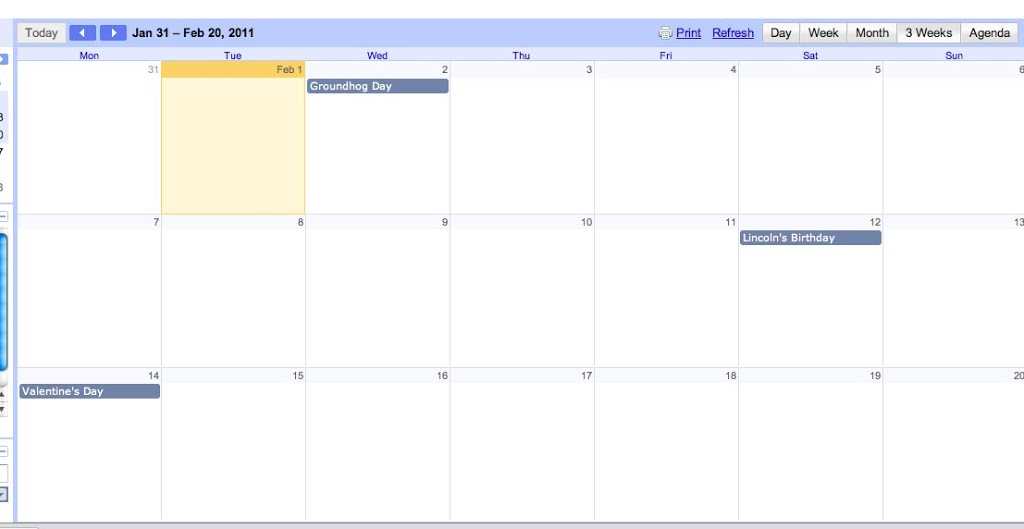
Google Calendar allows you to pick from multiple views: day, week, month, agenda and custom. The first three are pretty self explanatory but it’s the custom view that can really help keep an eye on the immediate horizon. I have mine set to display the next three weeks where the first week is always the current week. This allows me to see all of this week’s events plus what’s coming down the pipeline the next two weeks. Here’s how:
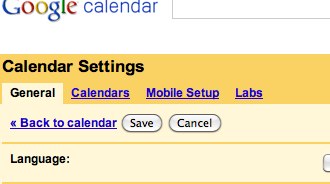
1. Find “Settings” on the top right corner of your browser and click on Calendar Settings.

2. Scroll to “Default view” and select “Custom.”

3. The next line should read “Custom view.” Select 2, 3 or 4 weeks. Or, if you prefer, pick one of the “days” settings.

4. Back up at the top, click “Save” and you’re all set.
Now, every time you open Google Calendar it will display the current week followed by the next two.
Tip:
A smaller screen size doesn’t lend itself to too many weeks. If you have a screen smaller than 13′ then stick to 2 weeks.
2d2108cb2f2e4da4b00e8d3026e8e5de

